
slidewizard.ai / Features / Charts
Free in the add-inFinance charts that work
like PowerPoint itself.
Waterfall, column, bar, line, pie, doughnut and Gantt charts, clean enough for any board pack and edited right on the slide.
Drag the pink handle to another start year.
Chart types
11 chart types, with more in the works.
Columns and bars in clustered, stacked and 100 % versions, plus waterfall, line, pie, doughnut and Gantt. The marked types come next.
- Waterfall
- Columns
- Stacked columns
- 100 % columns
- Bars
- Stacked bars
- 100 % bars
- Line
- Pie
- Doughnut
- Gantt
- Marimekko In the works
- Scatter In the works
- Bubble In the works
- Area In the works
- Butterfly In the works
- Funnel In the works
Waterfall
Bridges that explain themselves.
Show how you get from last year to this year’s result: totals, increases and decreases with connector lines. Axis breaks keep very different magnitudes readable.
- Increases and decreases in their own colours
- Difference and CAGR arrows between any two bars
- Labels stay readable even when the chart is small
AI and charts AI-Slide-Engine
Charts that take instructions.
Describe the chart and the AI builds it, restyles it or updates a number. When it adds callouts, icons or a target line, it reads the chart first and places them exactly on the data. The chart itself stays untouched.
 Edit slide
Create, restyle, change a number: you say what the chart should show. The result is a native PowerPoint chart in your master, data sheet included.
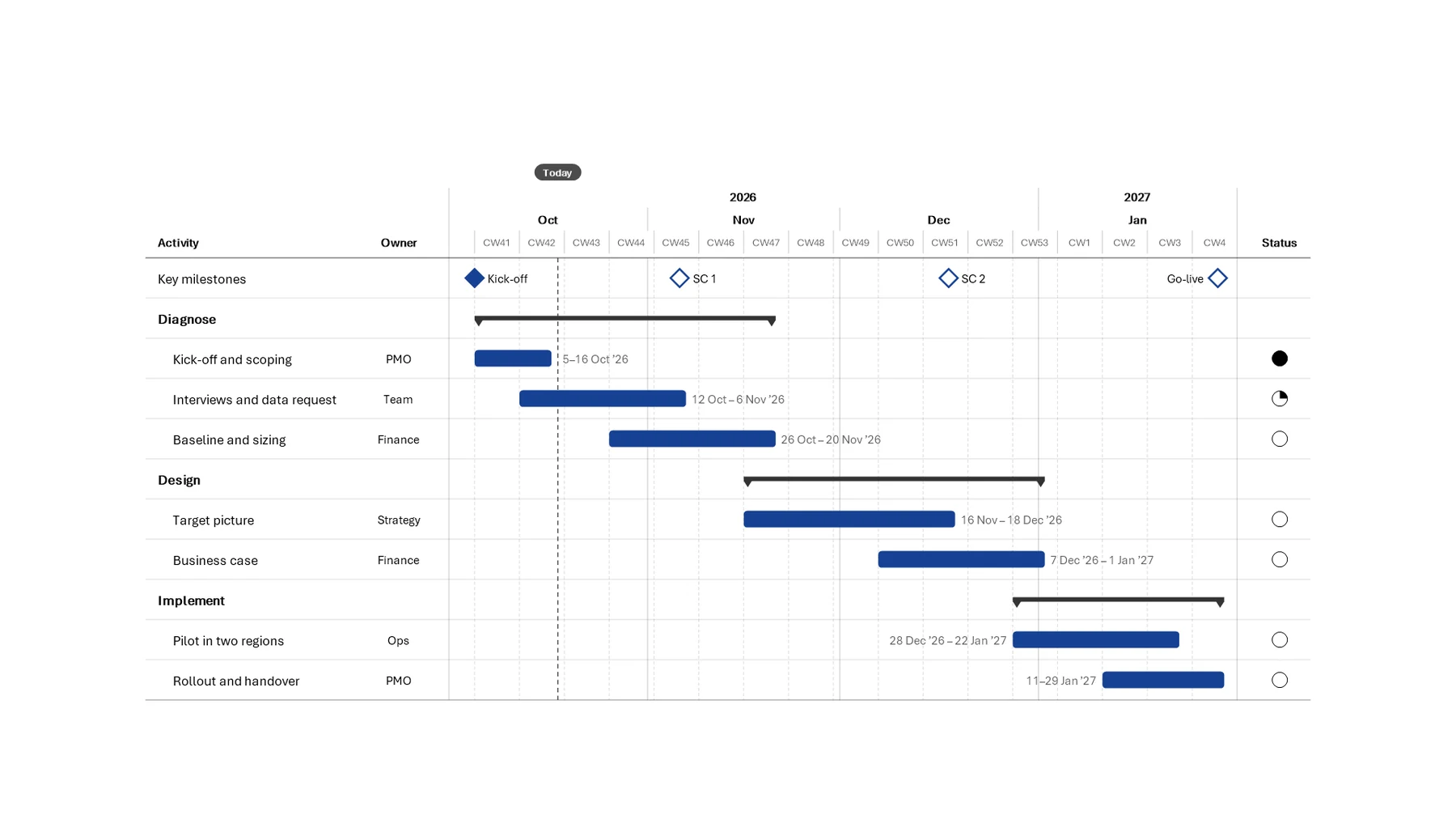
Gantt
Project plans with a consulting look.
Phases, tasks, owners and milestones with a today line. The timeline scales to calendar weeks, months or years on its own, and long labels wrap cleanly.
- Reached milestones fill in automatically
- Status column with Harvey balls
Editing
Fewer clicks to a finished chart.
Hands on, not dialog boxes
Adjust values, labels and spacing right on the slide, like any other PowerPoint shape.
Arrows that do the maths
CAGR and difference arrows place themselves and work out the value for you.
Numbers that stay current
Once the chart is linked to Excel, one click pulls in the latest numbers from your workbook.
On brand from the start
Charts take on the colours of your master automatically.
FAQ
Questions about charts
Are the charts real PowerPoint objects?
Yes. Charts are built from native PowerPoint shapes and text, so colleagues without the add-in can edit them too. With the free add-in you also edit them right on the slide.
Do I need the AI features for charts?
No. All chart types and on-slide editing are part of the free add-in. With the AI features, the AI also builds charts from your data when it creates slides for you.
Can I keep my data in Excel?
Yes. Paste a range into the data sheet, or link an Excel range so the chart stays connected to your workbook.
Which chart types are coming next?
Marimekko, scatter, bubble, area, butterfly and funnel charts are in the works. We will announce them in the changelog.
Show us your toughest deck.
slidewizard is in closed beta. Request access and we will set you up.