
slidewizard.ai / PowerPoint add-in
The PowerPoint add-in for people who build slides every day.
Charts, elements and AI slides in one ribbon tab. Everything you create is native PowerPoint, inside your master.
PowerPoint for Windows · Mac support in the works
Setup Free
Set up once, and every slide fits your master.
Four short steps per master: layout, content area, colours, corners. From then on every chart and every AI slide sticks to them.
- Saved in the file, so everyone on your team uses it for the same master
- Nothing lands on your logo or footer: generated content stays in the content area
- Decks from the web app open already set up
The same AI slide, built in three corporate masters.
Content and structure stay the same. Colours, corners and frame come from each master, just as slidewizard adapts every slide to your brand.
Navy and cyan, square corners, accent bar along the top.
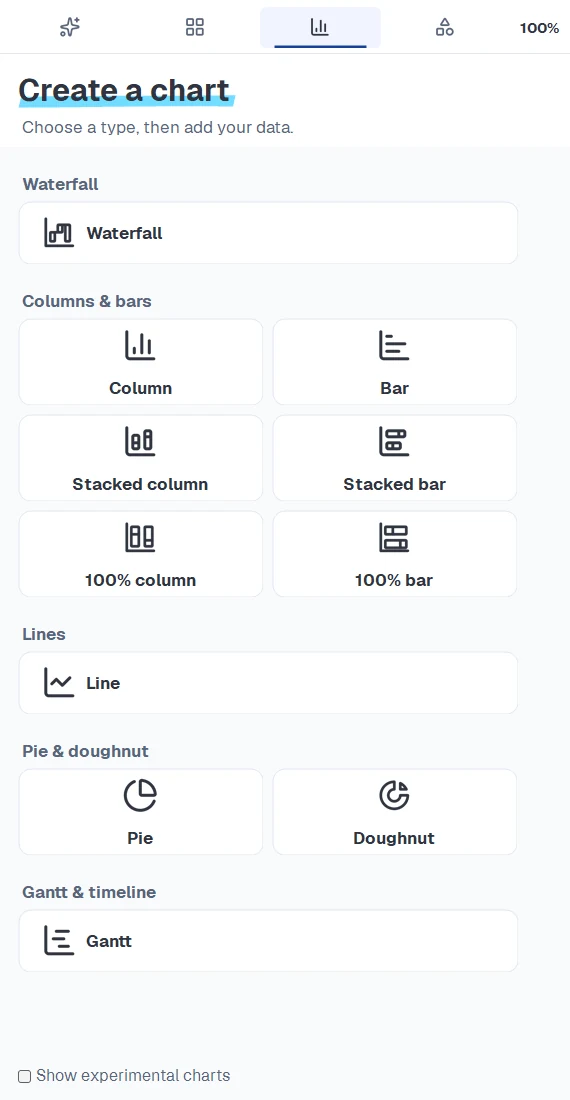
Charts Free
The charts you used to need an extra tool for.
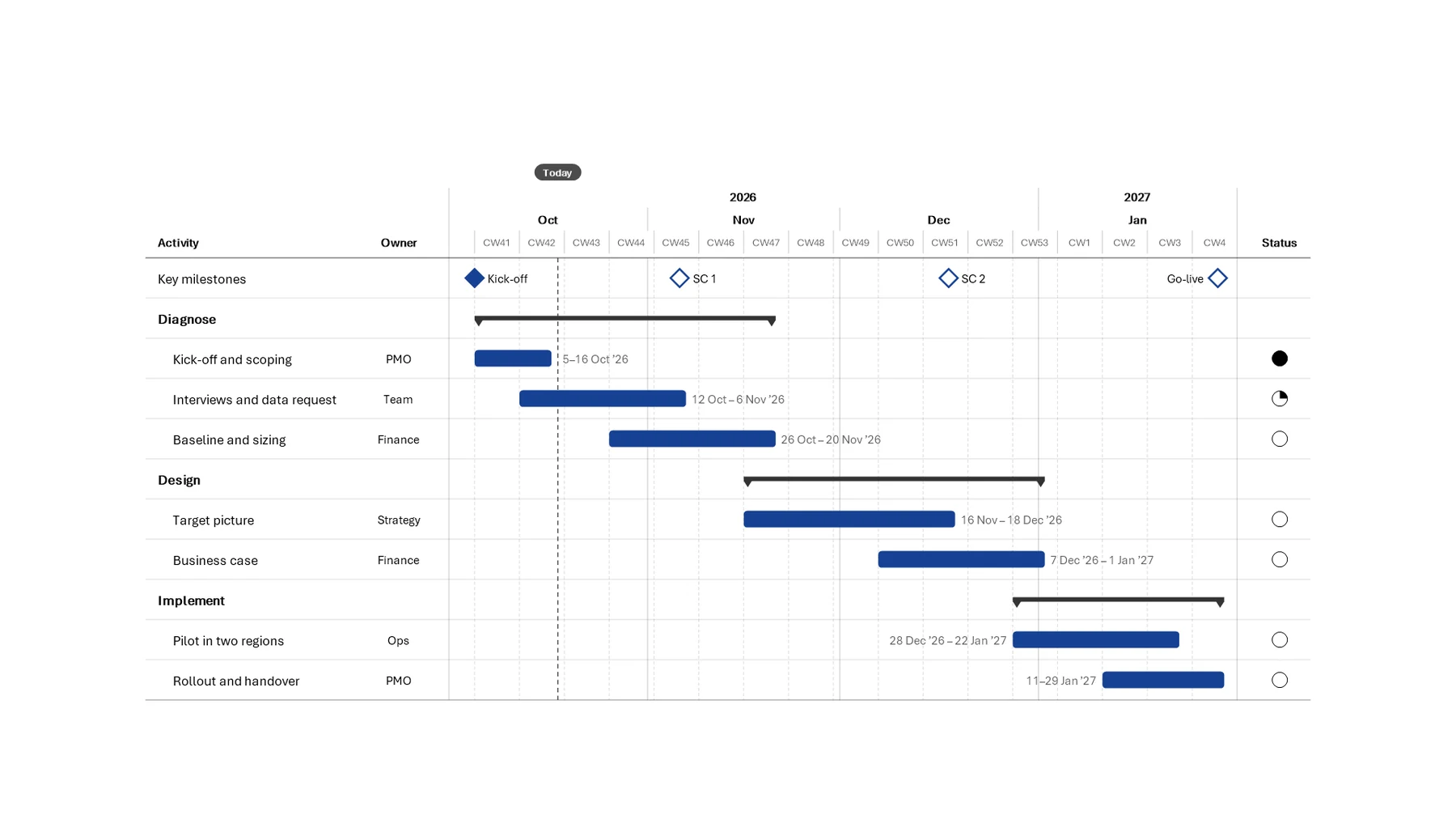
Waterfall bridges, growth arrows and project plans right in PowerPoint, in your colours. Free of charge.
- CAGR and difference arrows put the key message right into the chart
- Paste or link numbers from Excel and refresh them in one click
- Project plans that look as if a consultancy made them
Power-Tools Free
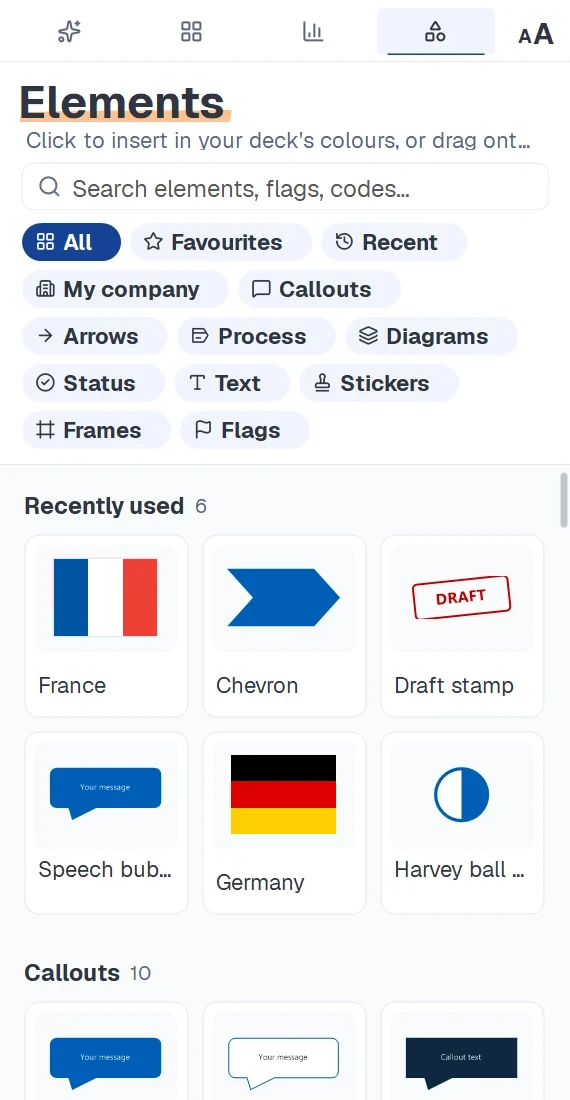
Pyramid, timeline or country flag, without the hunt.
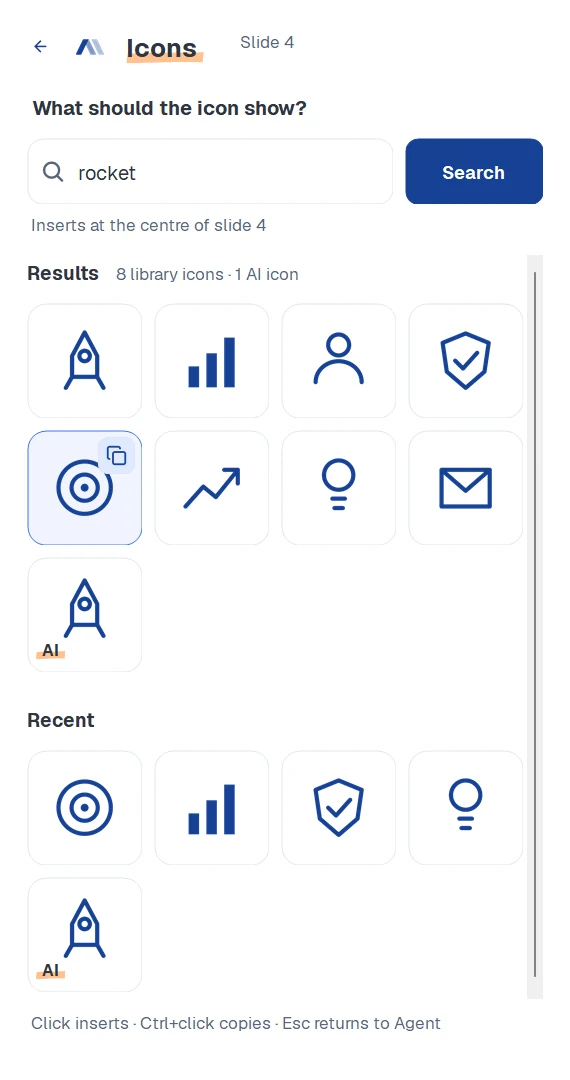
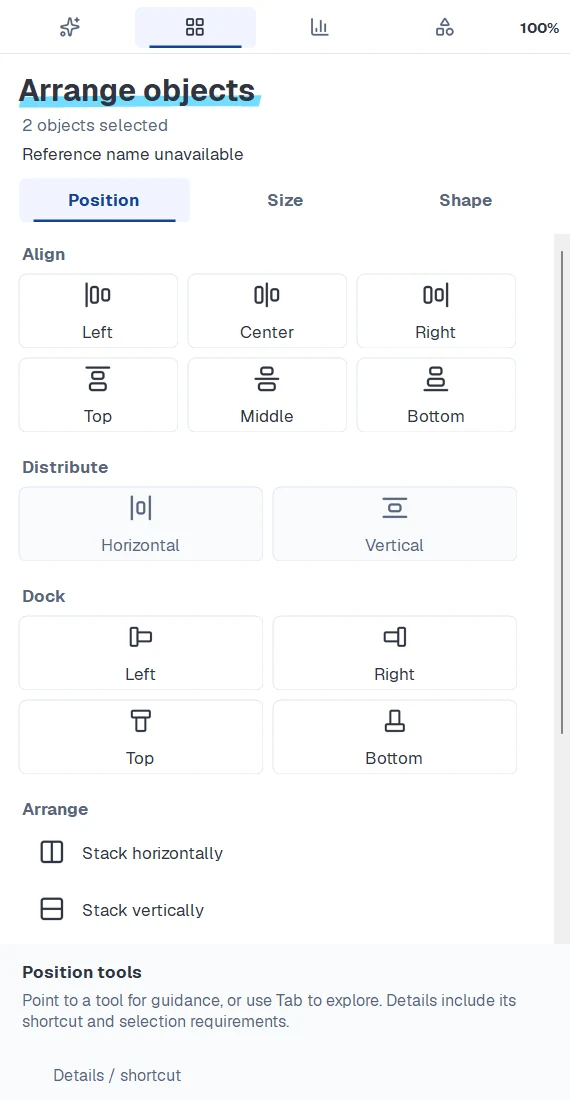
176 elements in your deck colours, 256 flags, an icon search, your own company elements and alignment in one click.
- Search in English and German: "pyramid", "zeitstrahl", "chevron 5"
- New elements land next to your selection, not somewhere on the slide
- Import your own company elements as a ZIP
Layouts
Start from a proven layout, not a blank slide.
Agenda, process, roadmap, matrix or KPI dashboard: pick a layout from twelve categories or describe what you need. It lands as a new slide in your deck colours, fitted to your master, and the AI writes your content into it.
- Search in your own words: “process with four steps and a KPI”
- When you create a slide, slidewizard suggests matching designs and the AI builds your slide on the one you pick
 Layouts
Click a proven layout to insert it after this slide.
Agenda
Section divider
Process
Timeline & roadmap
Comparison
Matrix
KPIs & dashboard
Chart & insight
Organisation & team
Locations & regions
Quote & statement
Framework
Click a layout: it lands as a new slide in your theme colours, fitted to your master. Edit slide then writes your content into it.
AI AI-Slide-Engine
Say what should change. Only that changes.
Shorter title, highlight Q3, show this part as a table: you describe the change, slidewizard makes it in native PowerPoint, inside your master.
Here: a shorter title and Q3 highlighted in the chart. The rest of the slide stays as it was.
Create
One sentence becomes a complete slide, designed for exactly this content.
Edit
Describe the change in a sentence. Everything else stays where it is.
Mark an area
Frame one part of the slide and give feedback on just that. Only that part is rebuilt.
Polish
One click sorts out alignment, spacing and font sizes across the slide.
Rebuild from image
A screenshot, sketch or whiteboard photo becomes an editable slide in your master.
Enhance prompt
Turns a rough idea into a precise slide brief. Quality tier and style sit right next to it.
Agent AI-Slide-Engine
From brief to finished deck, right in PowerPoint.
Explain the task to the agent as you would to a colleague. It plans the storyline with you, does the research and builds the slides into your open presentation.
Describe a change in one sentence. The agent shows what it wants to change on the slide and only starts once you approve. Everything else stays as it is.
Storyline first
Chapters and a slide plan come first. Building starts once you say yes.
Your files
Reports, spreadsheets and earlier decks as the basis for your storyline.
Research with sources
Current facts from the web, and every slide shows where a number comes from.
Knowledge
Explain something once and the agent remembers it for the whole deck.
Changes you approve
The agent suggests, you apply. Everything else in the deck stays untouched.
Consistent across the deck
Quality tier, slide style and master apply to every slide.
Everyday
Small things that save time every day.
Floating button
New slide, edit and polish sit in a small bar right next to your slide.
Updates with release notes
Every new version tells you what’s new. You decide when to install it.
Tour and tips
A short hands-on tour to get started, then tips just when they are useful.
Usage at a glance
How much of your monthly AI budget is used, in percent, right in the ribbon.
No add-in needed to open
Colleagues without slidewizard open and edit your slides like any other presentation.
Feedback from PowerPoint
Report a bug or suggest a feature without leaving PowerPoint, screenshot included.
Getting started
Ready in a few minutes.
- 1
Request access
We are in closed beta and onboard new teams personally.
- 2
Install
Takes a minute and needs no admin rights. slidewizard then appears as its own tab in the ribbon.
- 3
Set up
In four short steps, slidewizard learns how your master works.
- 4
Create
Insert a chart, an element or your first AI slide. The tour guides you through it.
Show us your toughest deck.
slidewizard is in closed beta. Request access and we will set you up.